Tech Booth Startup Sequence
Lights
Turn on the stage light breakers
In the electrical closet next to the door to Rock Kids.
Turn on Lighting Mac
Vista 3 will automatically open on startup.
Open our show file
SundayFay40Click the Playback page
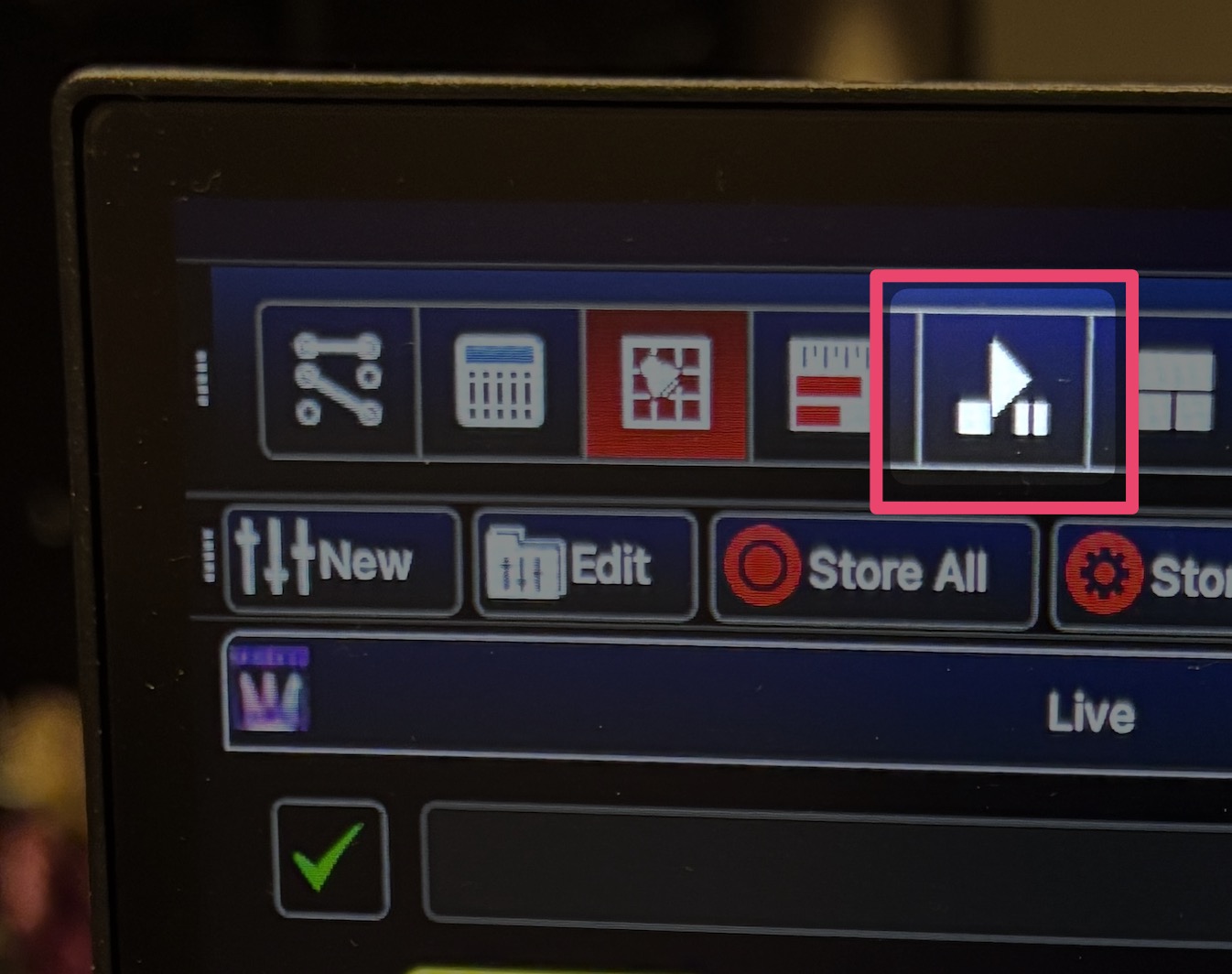
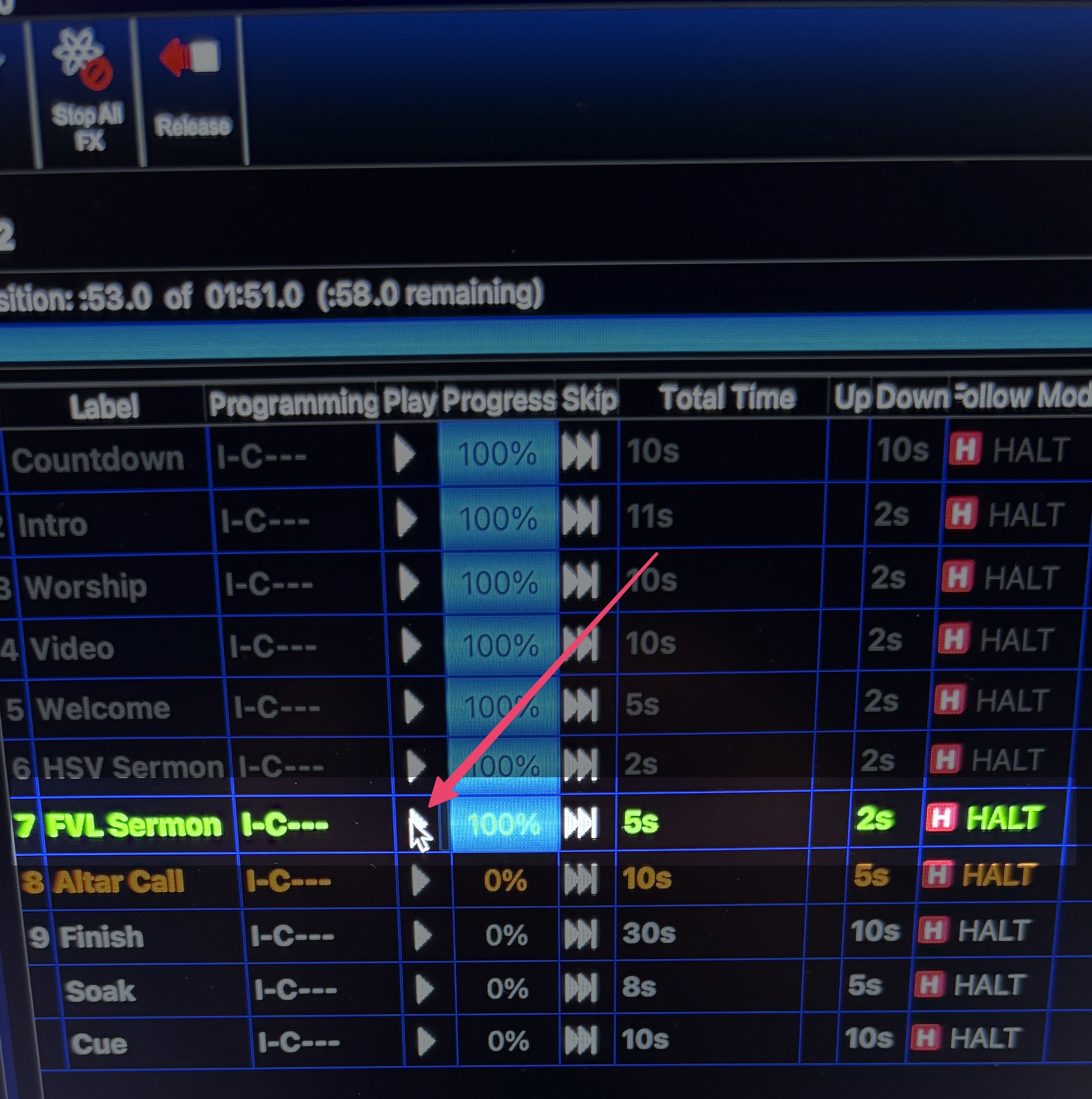
Select
Mainarrow_rightFVL SermonThis lighting scene is good enough for most scenarios.
ProPresenter & Video
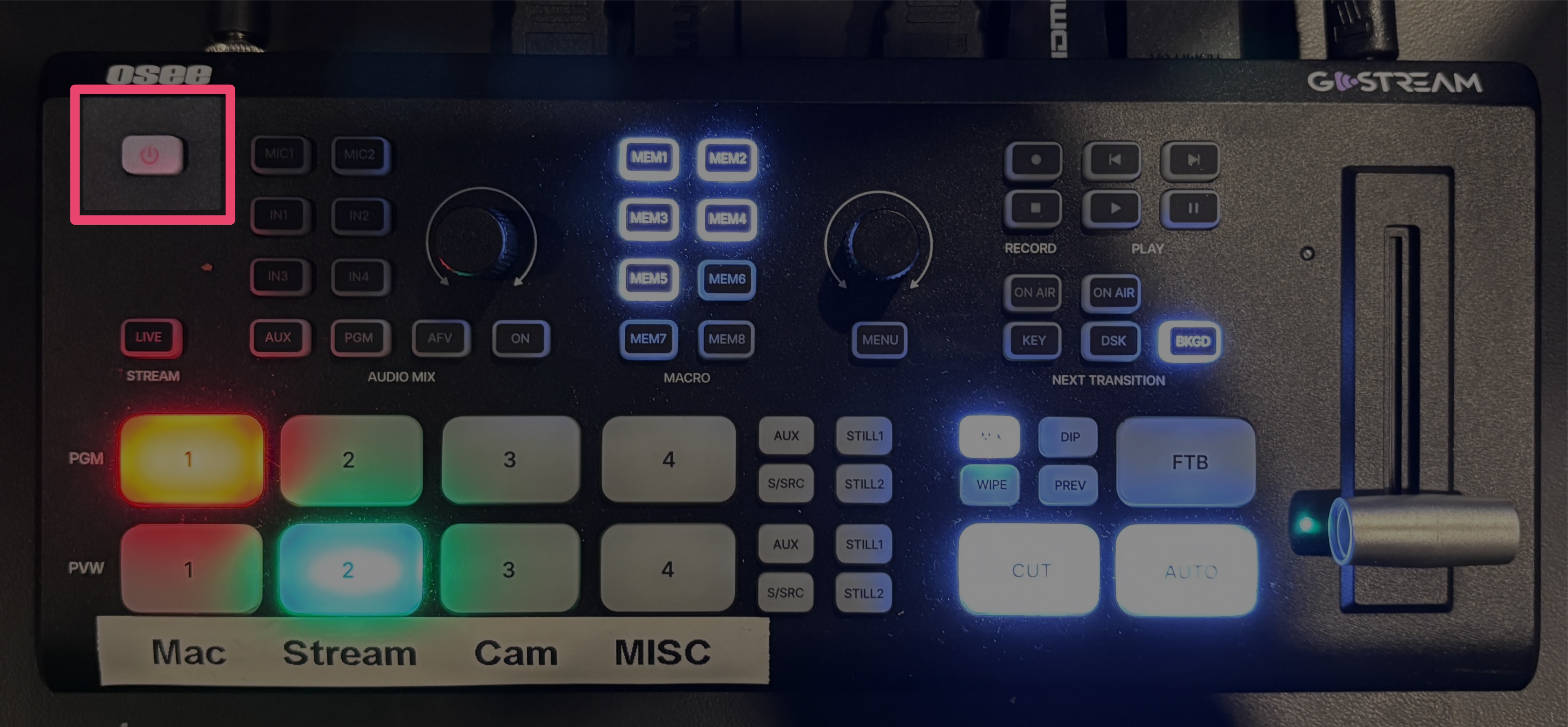
Turn on the Sanctuary Switcher
Turn on the Video Rack
Turn on the Multiview TV
Set the input to
HDMI 1using the remote velcro'ed to the back to set the TVTurn on ProPresenter Mac
ProPresenter will automatically open on startup.
The External Switcher (for the sending video to the TVs throughout the building) is powered from this computer. It will come on automatically.
Plug in the Live Camera to turn it on
Sound
1Turn on battery backupBottom unit in the Audio Rack
Hold button above left corner of screen until it beeps and let go.
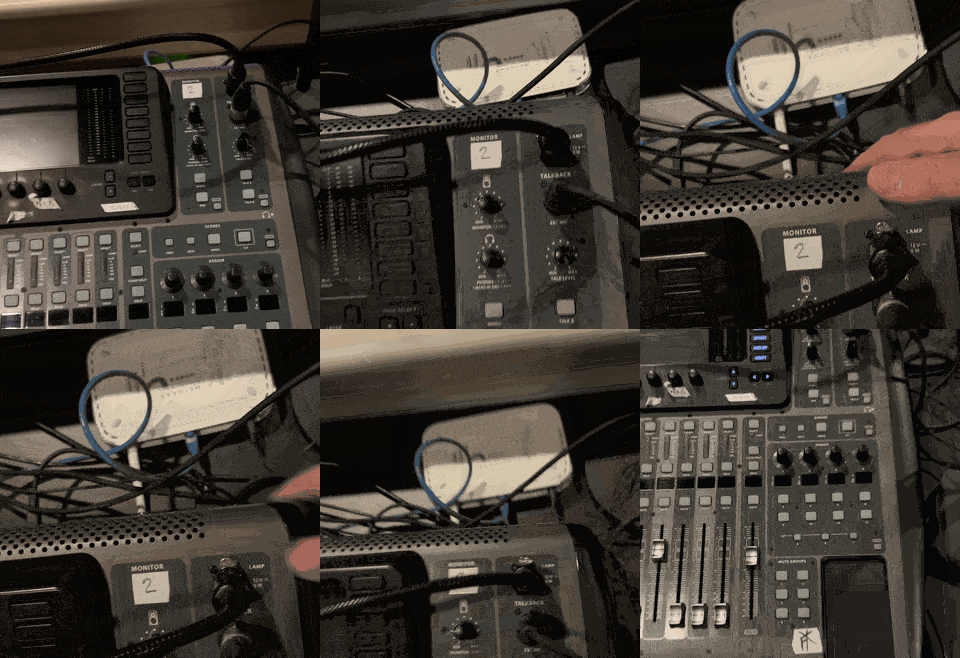
2Turn on the sound boardSwitch behind the board on the right hand side.
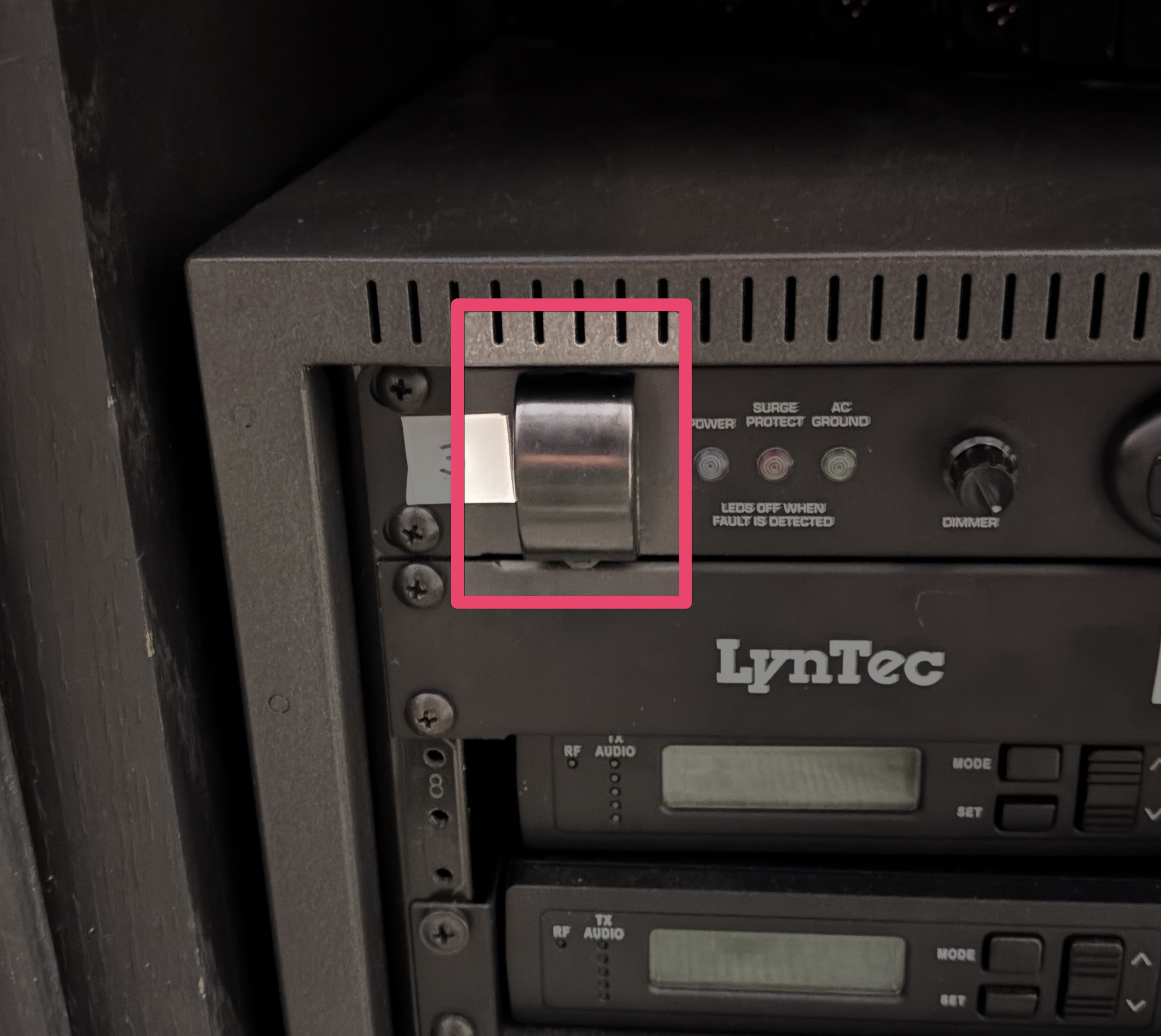
3Turn on the power conditioner for the wireless micsTop unit in the Audio Rack
Switch is under a cover that pops up from the bottom.
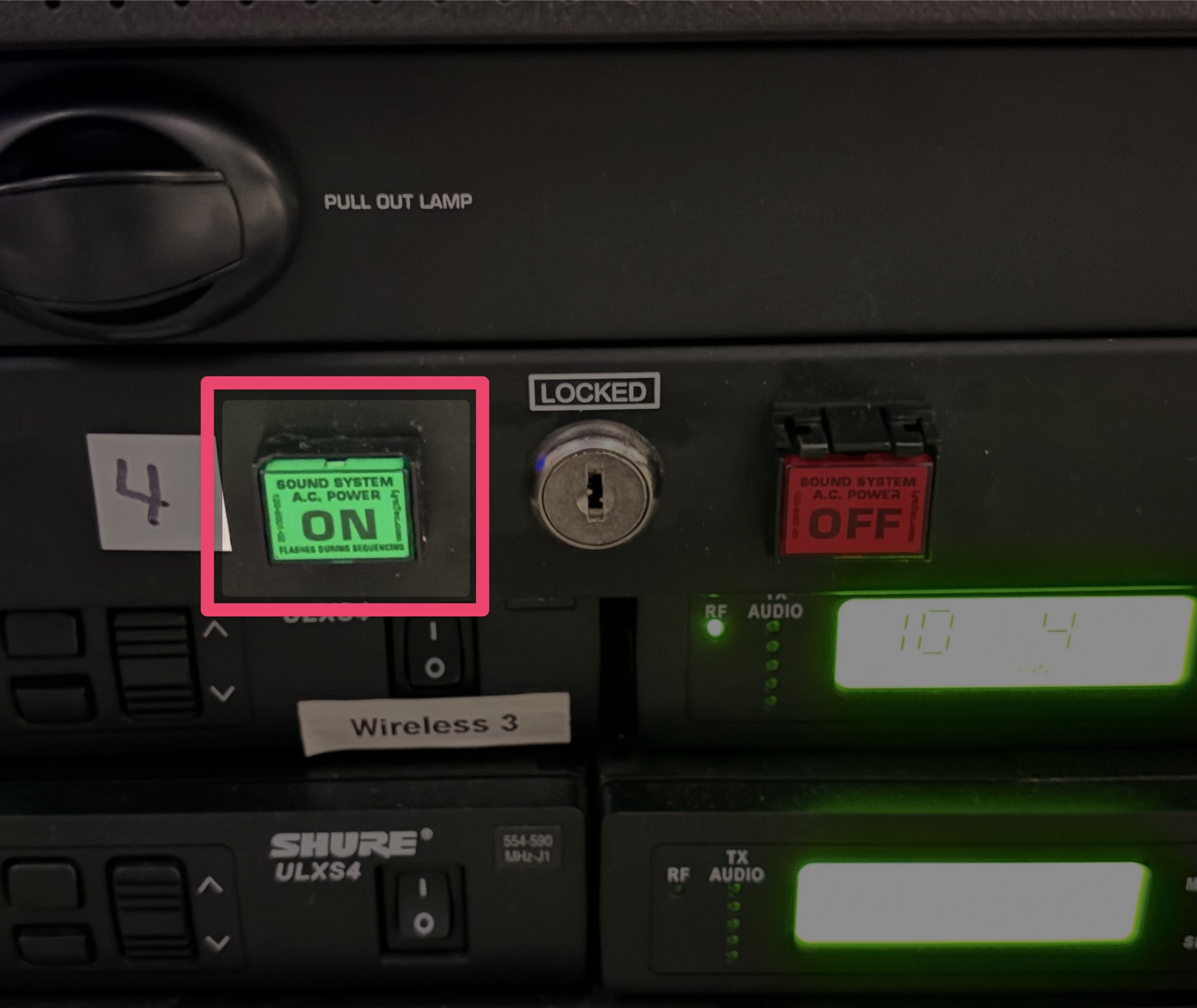
4Turn on the LynTecSecond unit from the top in the Audio Rack
Press the green button
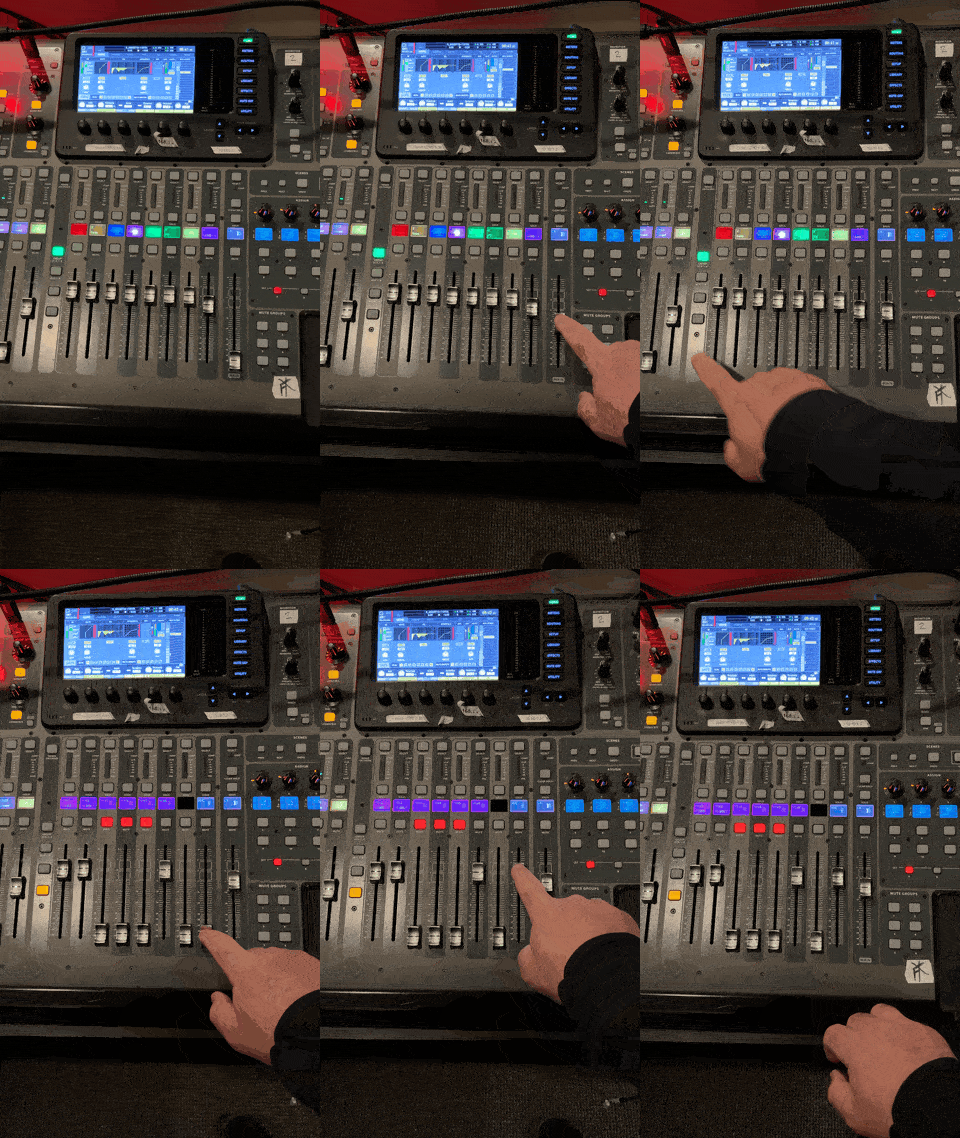
Set some board levels
Main L/R to
-5dBMain C to
0dB